

Blog /
Customthings Squarespace Integration Guide
Customthings Squarespace Integration Guide
 linqianyan · June 04, 2026
Connect your Squarespace store to Customthings and manage customized products and orders from one place.
Connect Your Squarespace Store
Go to the Squarespace integration page and click Connect.
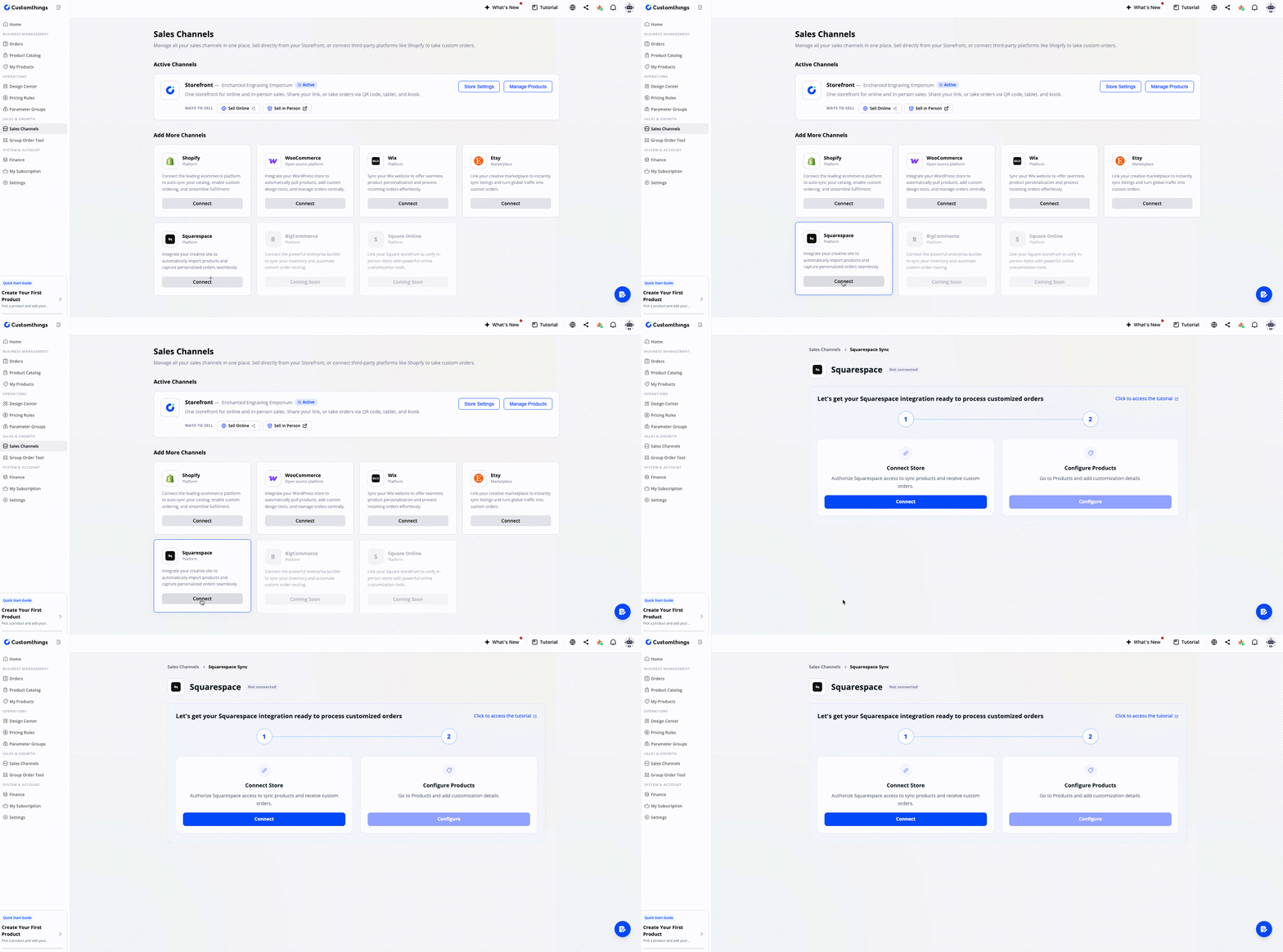
The system will guide you through authorizing Squarespace access so Customthings can sync your products and orders.
This step is required before Customthings can read your Squarespace product and order data.
Configure Your Products
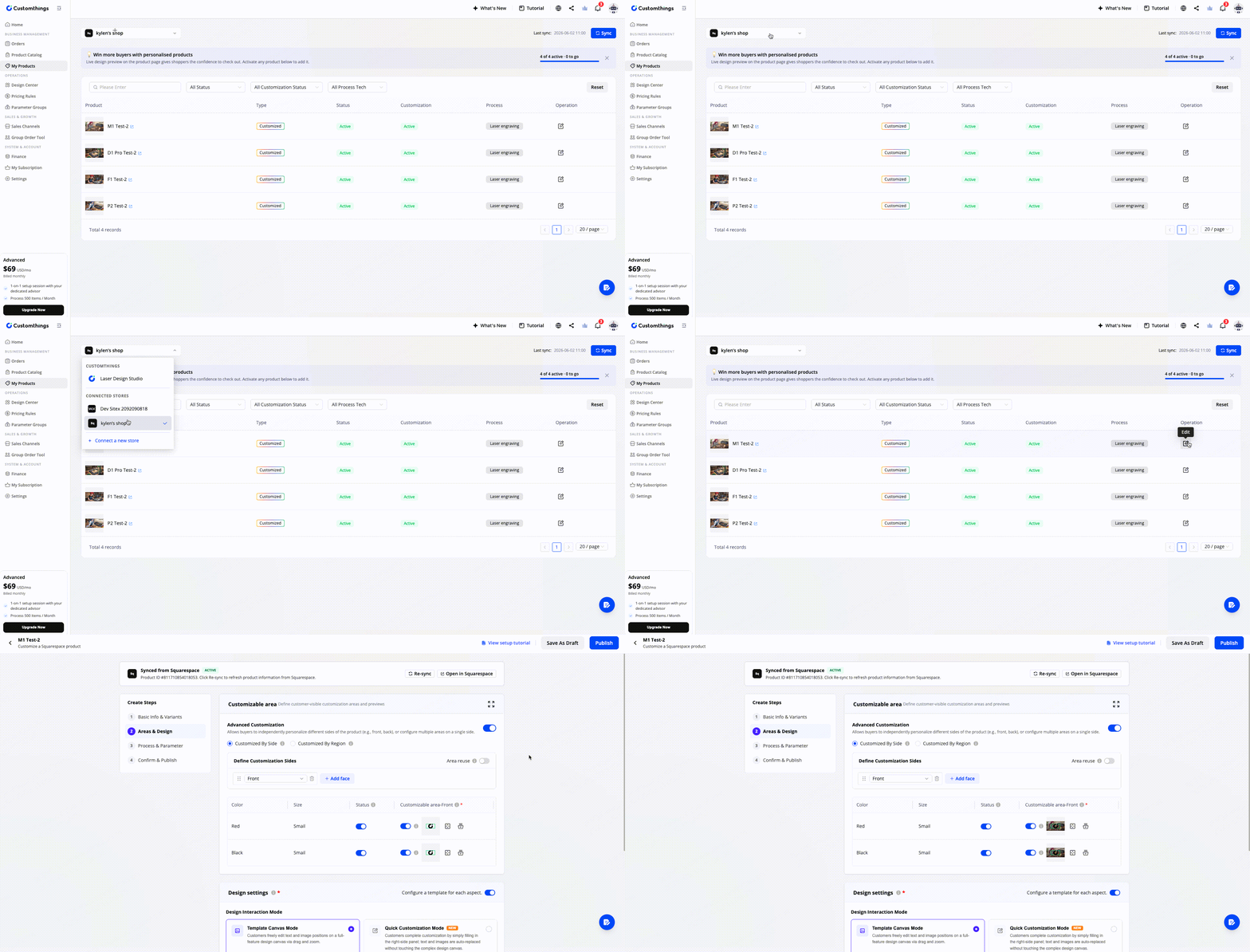
After connecting, your Squarespace products automatically appear in Customthings.
Go to the Product page, switch to your Squarespace channel using the top-left channel switcher, and open any product to configure its customization settings — customizable area, design options, text fields, color, size, and other personalization fields.
Click Publish when done.
Send the Customization Link to the Customer
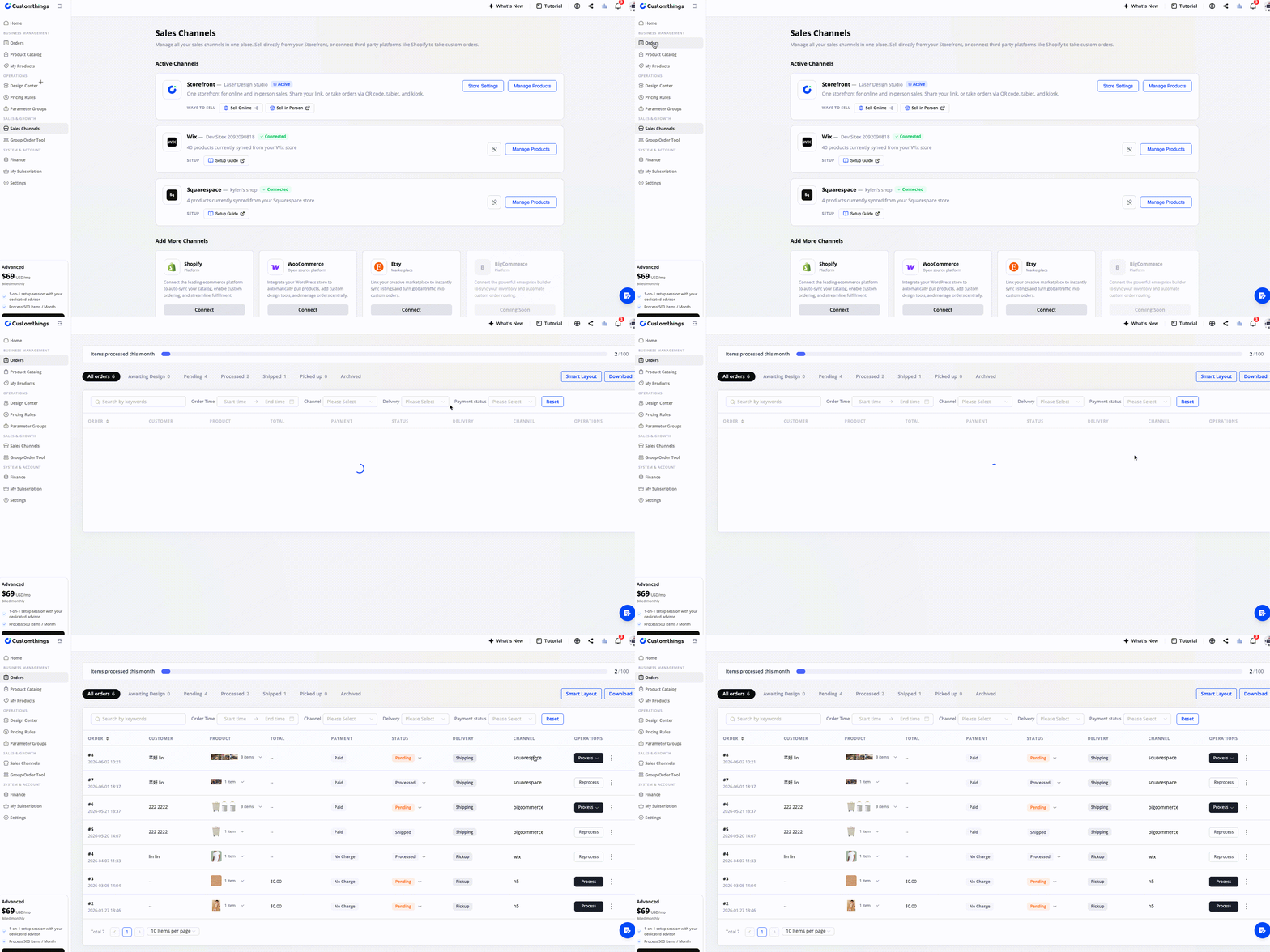
After a customer places an order in your Squarespace store, the system automatically sends them an email with a customization link. The customer clicks the link to customize their order.
When you see the order in your Orders list, it means the setup was successful.
Before You Go Live
Check the following:
☑️ Your Squarespace store is successfully connected
☑️ Products are visible in the Squarespace channel on the Product page
☑️ Customization information has been fully configured on the products you want to offer
Get Started guides:Other platform integration guides: