

Blog /
Install Customthings in your Shopify store
Install Customthings in your Shopify store
 Matt · August 28, 2026
Install Customthings on the Shopify App Store →
1. Install the Plugin
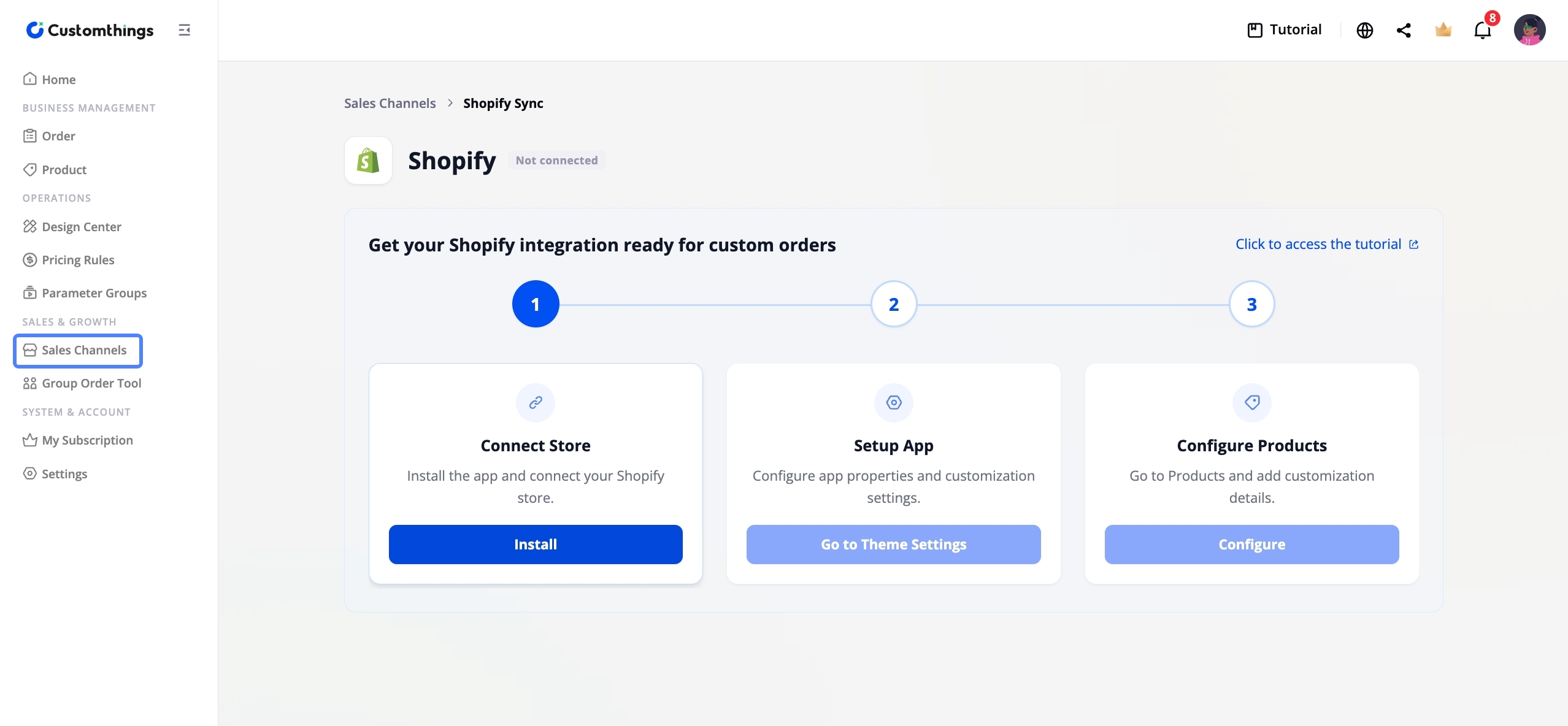
Go to Sales Channel → select Shopify → Install to install the Customthings Plugin on Shopify.
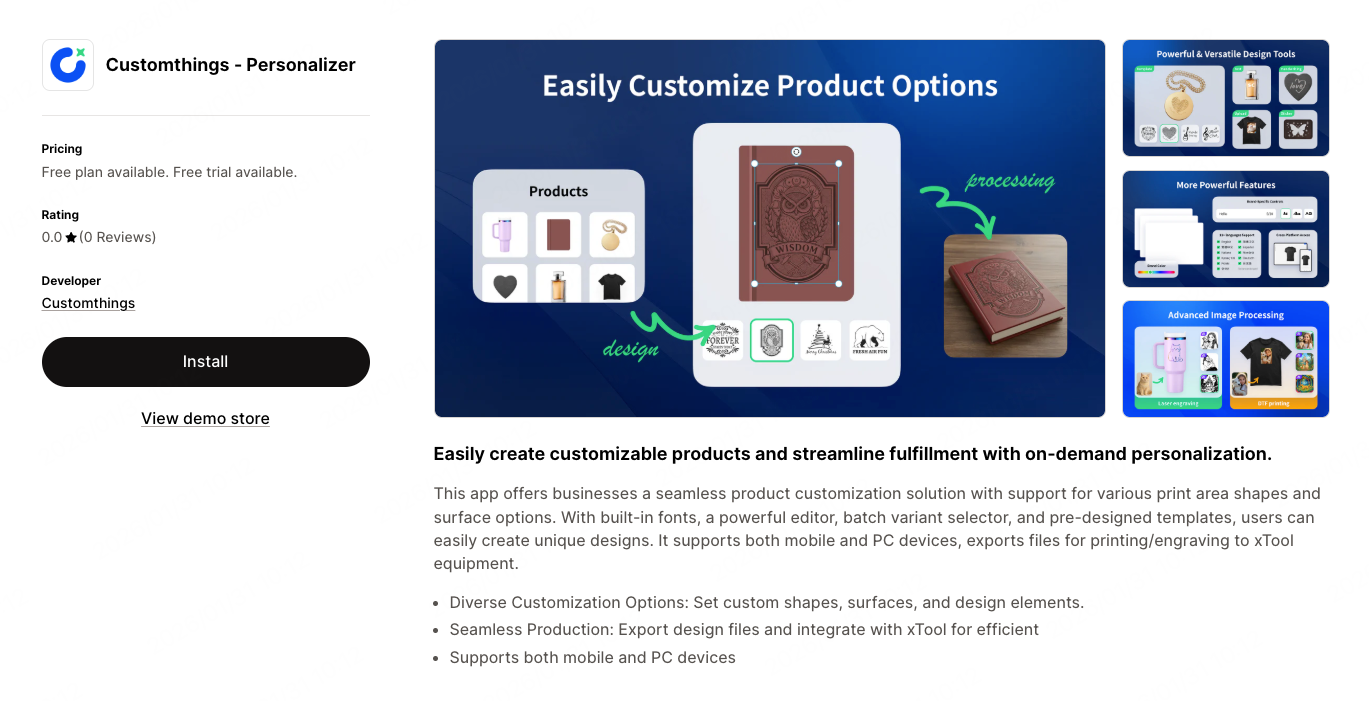
Alternatively, visit the Customthings listing on the Shopify App Store and click Install. Log in or sign up for Shopify, then click to install the app.
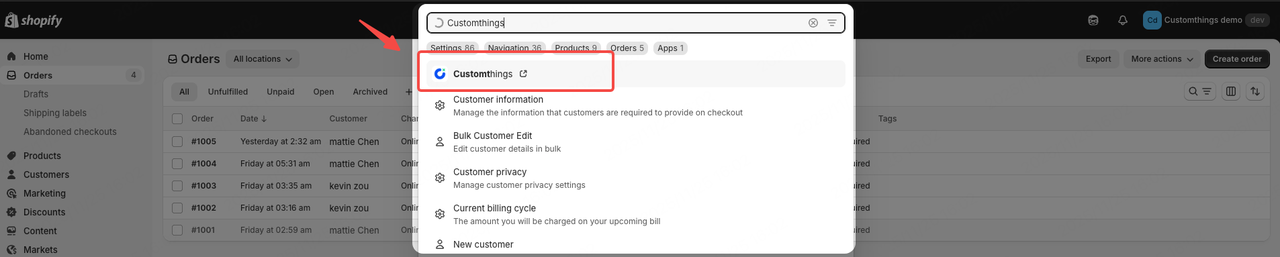
⚠️If you installed Customthings from the Shopify App Store before creating a Customthings account, an account will be automatically generated for you. In this case, access through the Shopify Admin Panel (Apps > Customthings) instead of logging in directly from customthings.com.
2. Connect Your Account
After installing the plugin in Shopify, you will be redirected to Customthings.
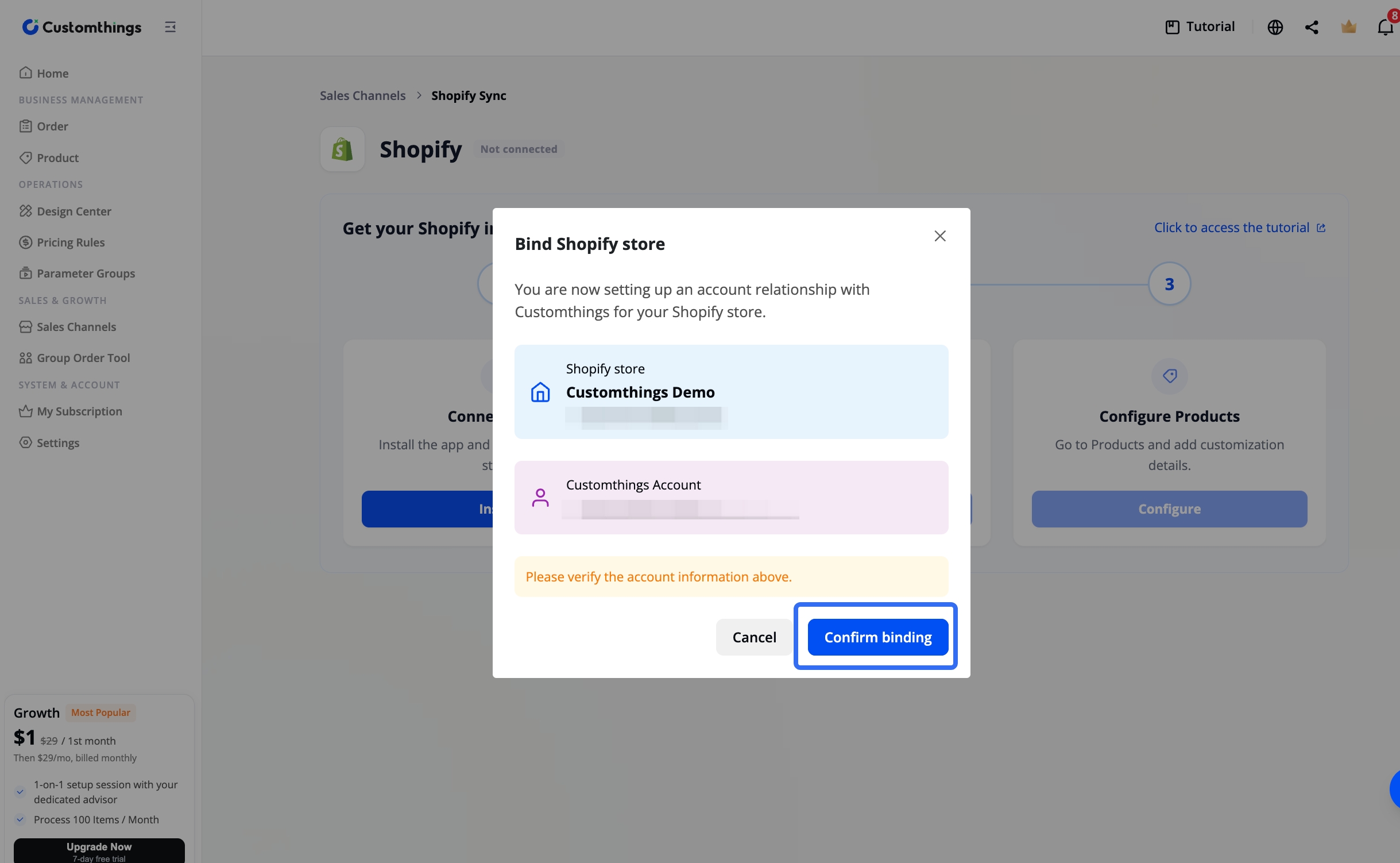
- If you are already logged in, the account binding pop-up appears automatically.
- If you are not logged in, log in first — the binding pop-up will appear once you log in.
Follow the pop-up instructions and click Confirm Binding
Subscribe to a Plan
Choose the plan you need and complete Approve of the subscription within Shopify.
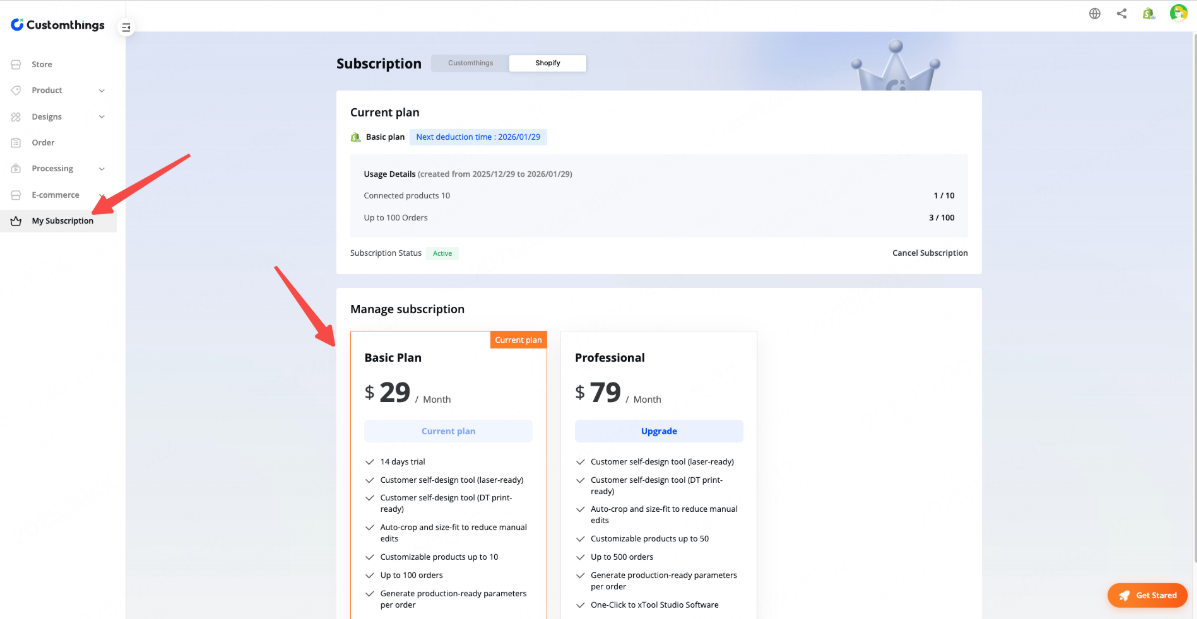
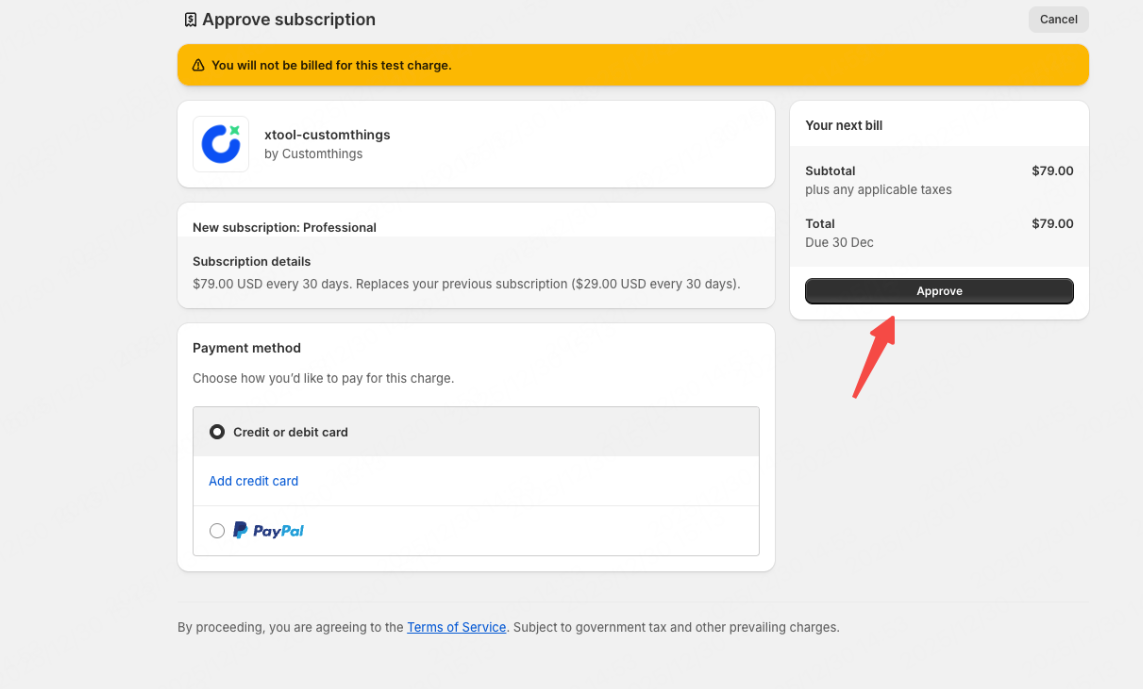
Once activated, the operation of binding the product can be completed.
3. Configure Your Products
Once your store is connected, all your Shopify products automatically appear in Customthings.
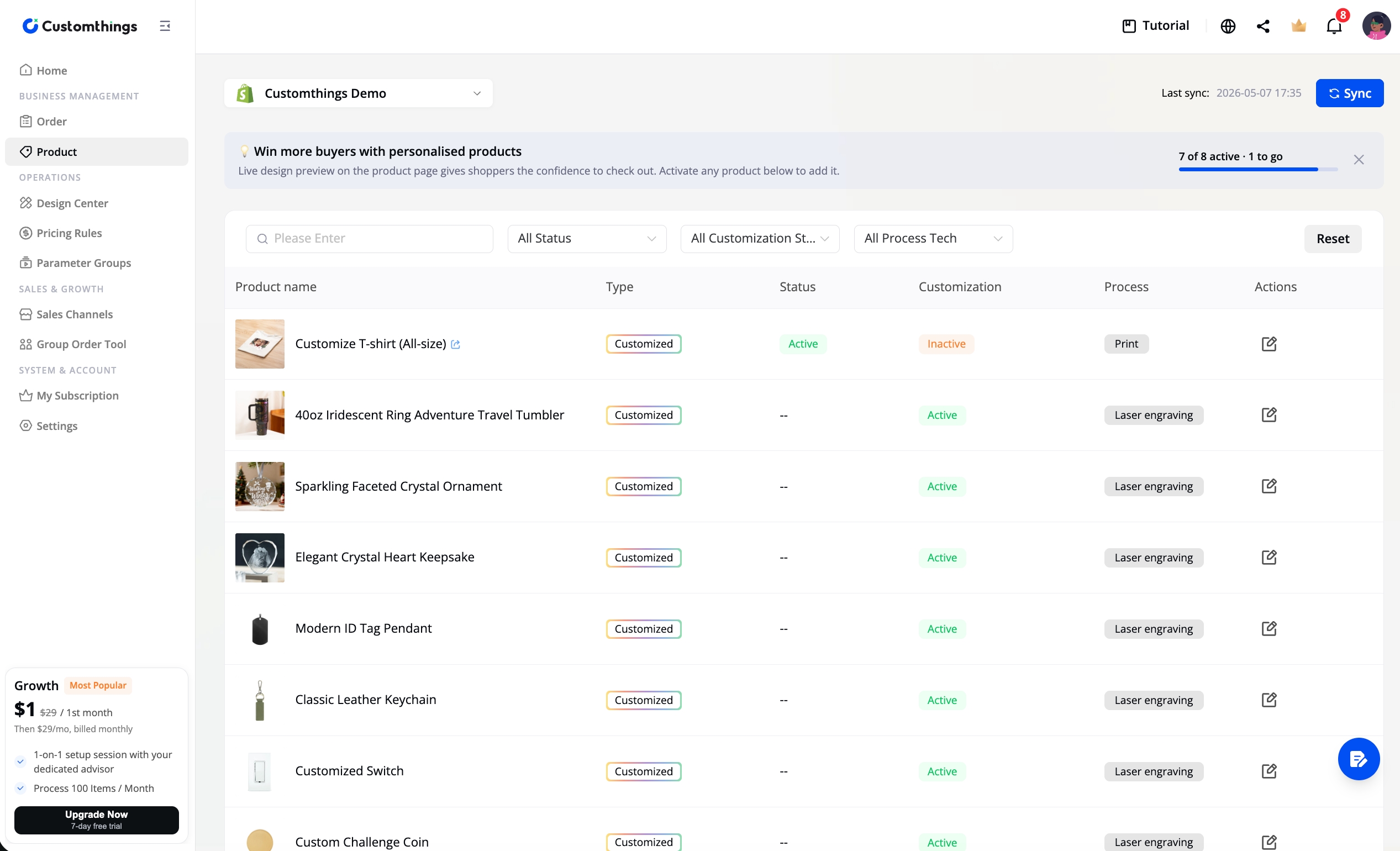
Go to the Product page, use the channel switcher in the top-left to select your Shopify store, and you'll see your full product catalog. Open any product to configure its customizable area, design settings, and processing parameters. Click Publish to push the customization settings to your Shopify listing.
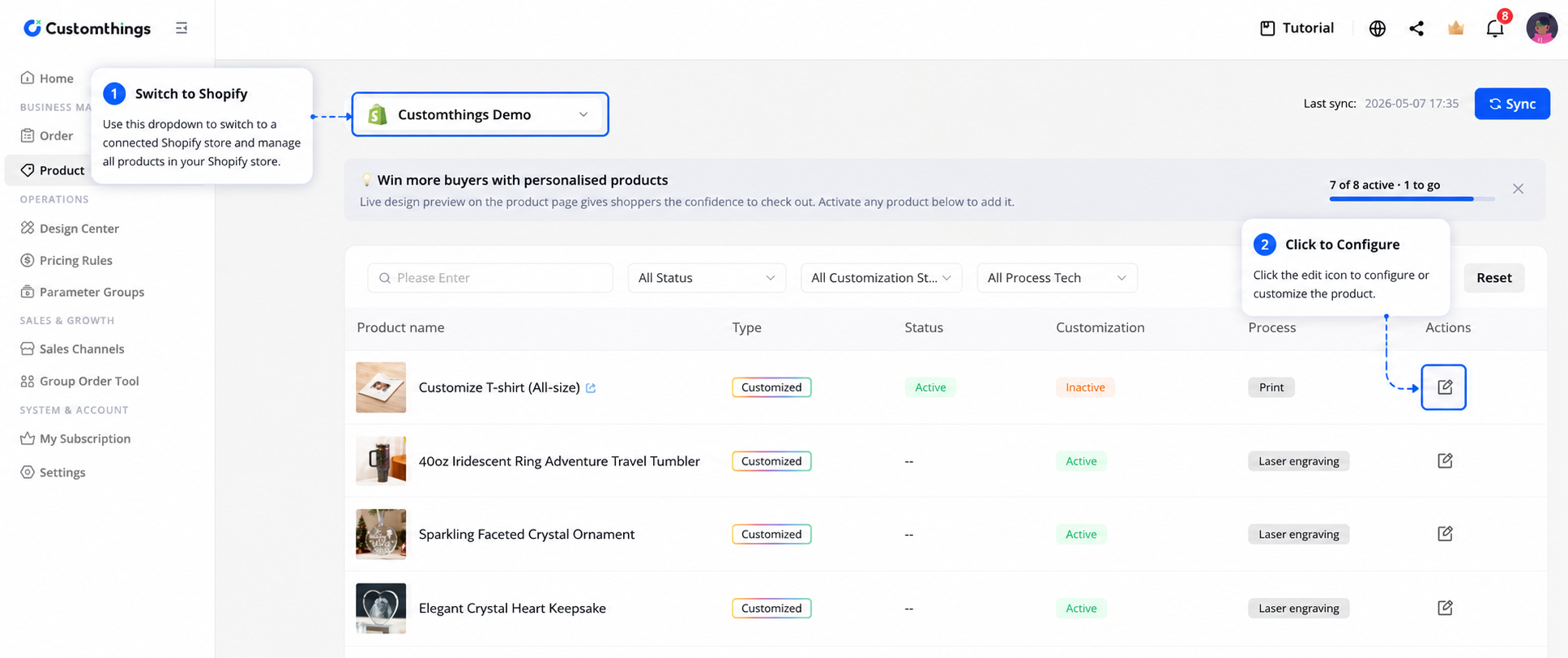
4. Embed Customthings into Your Product Page
Use the Shopify Online Store 2.0 Theme Editor to add the Customthings button:
- Go to your Shopify admin panel
- Select Sales Channel > Online Store
- Click the Edit button in the theme
- Navigate to a product page
- Click Add Module, then select Customthings from the app section
- Use the visual editor to position the button and edit its label
- Save and verify the result
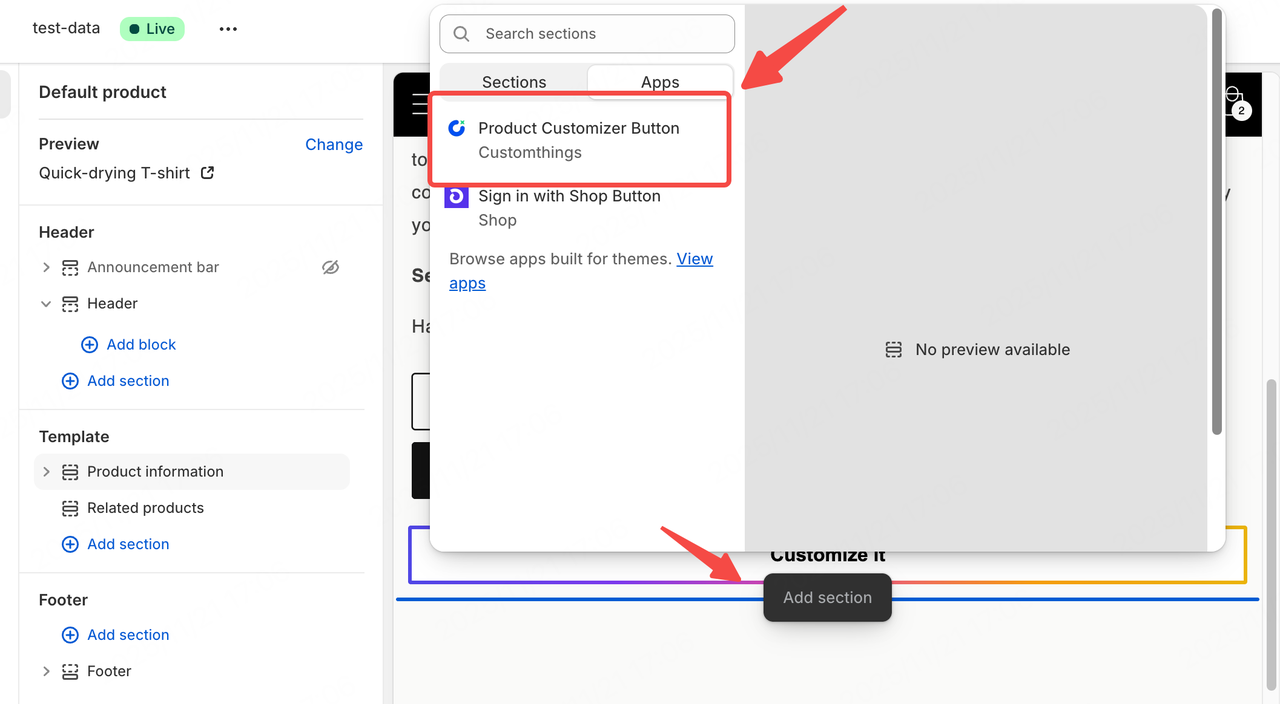
5. How to uninstall the plugin
In the Shopify admin, go to Apps and sales channel settings, find Customthings in the app list, and complete the uninstallation.
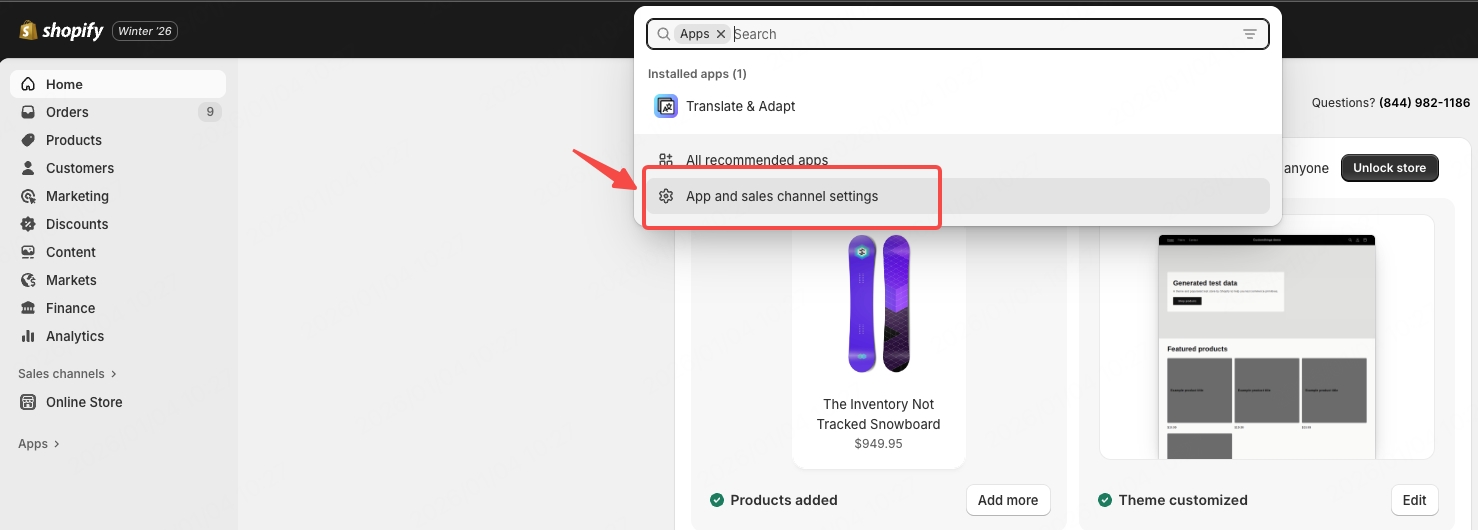
6. How to link to another store account
If you need to switch the bound Shopify store account after using it for a period of time.
You need to first complete the operation of uninstalling the application in the previously connected store; otherwise, the data will still be in a bound state, and you will not be able to connect to another store account.
Resources:
Install Customthings on the Shopify App Store →
Get Started guides:
Other platform integration guides:
6